Loading presentation…

OTRONIC Arduino UNO starter kit

Arduino UNO starter kit: tutorial and 16 projects

Step by step: what is an Arduino, what is in your kit, how does Codey work, and 16 projects to build yourself.

codey.online/starter-kits/uno/tutorial

CODEY ONLINEUNO starter kit
CODEY ONLINEUNO starter kit · Welcome
OTRONIC Arduino UNO starter kit

Welcome! You are going to make it! 🚀

With this starter kit, you build your own smart little devices. A weather station, a parking sensor, an alarm… And the best part: you do not need to know how to program. Codey helps you.

Take a quick look at this short tutorial. Then you will know what is in your kit and what you can do with it. After that, you will start right away with your first project.

This is how it goes:

  1. 2What is an Arduino and what can you do with it?
  2. 3All the parts in your kit, one by one
  3. 4What is vibe coding? Programming with AI
  4. 5Make your free account
  5. 6This is how Codey works
  6. 7Connect your Arduino and upload your code
  7. 8Get started with 16 projects

⏱️ This takes about 15 minutes. You can always skip it and come back later.

Arduino UNO R3 Starterkit
CODEY ONLINEUNO starter kit · The Arduino

What is an Arduino UNO?

The Arduino is a tiny computer. You tell it what to do, and it does it. Again and again, without getting tired.

How an Arduino thinks

👀
Input

It senses something. A button, light, heat, or distance.

🧠
Arduino

It thinks. Your code tells it what to do.

💡
Output

It does something. A light turns on, a beep, or a little motor.

Example: the distance sensor sees that you come close (input). The Arduino thinks: "too close!" And the buzzer starts beeping (output). That is how a parking sensor in a car works.

What is on the board?

Arduino UNO 1 2 3 4 5 6 7
  1. USB port: this is where the cable to your computer goes. It gets power and code through it.
  2. Power connector: for a battery or adapter (7–12V), when you are not using a computer.
  3. Digital pins D0 through D13: on or off. For lights, buttons, and buzzers.
  4. Analog pins A0 through A5: measure how much. For example, how much light there is.
  5. Power pins: 5V (plus) and GND (minus) give power to your parts.
  6. The chip: the brain. This is where your code goes.
  7. Reset button: starts your code again.

Two words you will see often:

  • 5V is the plus. This is where the power comes from (5 volts, just like a phone charger).
  • GND (ground) is the minus. This is where the power goes back. Every part needs a wire to GND.

Pins are the little holes on the side. You put wires in them. A pin can be an input (it listens) or an output (it gives power). You decide that in the code.

CODEY ONLINEUNO starter kit · Your starter kit

Part 1 of 15

Breadboard

Breadboard

The building board: build without soldering

In your kit: 1×

🔎 What is it?

A breadboard is a small board full of holes. You put parts and wires into it. Under the holes are metal strips that connect some holes to each other. This lets you make a circuit without soldering. Made a mistake? Just pull it out and try again.

🔌 This is how you connect it

This is how it works:

  • Rows of 5: in the middle part, 5 holes next to each other are connected (a–e and f–j). Everything you put in the same row is connected to each other.
  • The gap in the middle separates the two sides. So left (a–e) and right (f–j) are not connected.
  • Power rails (+ and −) on the long sides are connected along the whole length. Connect the + to 5V and the − to GND on your Arduino. Now you have power everywhere.
+ − − + j i h g f e d c b a 161116 ✓ ✗
  • Power rail: the whole length is connected
  • Gap: left and right are not connected
  • 5 holes in a row are connected
  • ✓ Good: the legs are in different rows
  • ✗ Wrong: both legs are in the same row

✨ What can you do with it?

  • Try out circuits without soldering
  • Give power to several parts at the same time with the + and − rails
  • Put an LED and a resistor neatly in series

💡 Tip

Never put the two legs of a part in the same row of 5. Then they are connected to each other and the current just goes around it. It is better to place a part across the gap.

🧪 Try it right away! In the exercise "Your first breadboard circuit" you build an LED with a resistor on the breadboard and make it light up and blink. →

Projects with this part

CODEY ONLINEUNO starter kit · Your starter kit

Part 2 of 15

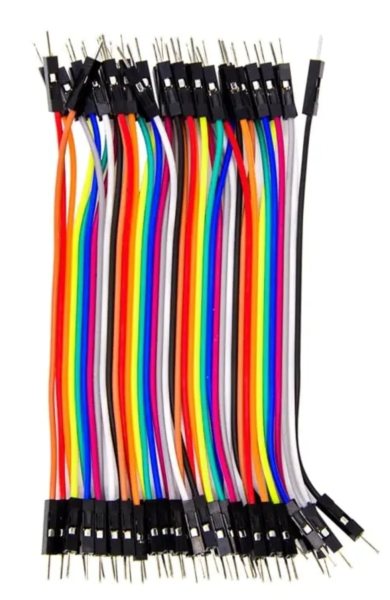
Jumper wires male – male female – female

Jumper wires

Dupont wires: the little wires that connect everything

In your kit: 40×

🔎 What is it?

With jumper wires, you connect your Arduino to the parts. They are also called Dupont wires, after the black plugs on the ends. There are two types in your kit:

  • Male-male (pin on both ends): for plugging into the Arduino and the breadboard.
  • Female-female (hole on both ends): for sliding onto the pins of a module.

🔌 This is how you connect it

Push the wire firmly into the hole or over the pin. If you combine a male wire and a female wire, you get a male-female wire. Handy for connecting a module straight to your Arduino.

✨ What can you do with it?

  • Connect your Arduino to the breadboard
  • Connect sensor modules
  • Bring power (5V) and GND to your parts

💡 Tip

Use fixed colors: red for 5V and black for GND. Then you can see right away if the power is connected correctly.

CODEY ONLINEUNO starter kit · Your starter kit

Part 3 of 15

+ − Long leg = plus (+) Short leg = minus (−) Flat side = minus

LED (little light)

A small light in 5 colors

In your kit: 10×

🔎 What is it?

An LED is a small light that uses very little power. Your kit has 10 LEDs in 5 colors. An LED only works one way, so you must put it in the right way around.

🔌 This is how you connect it

  • The long leg is the plus (+). It goes through a 220 Ω resistor to a pin on your Arduino.
  • The short leg is the minus (−). It goes to GND. On that side, the edge of the light is also flat.

Always use a resistor! Without a resistor, the LED gets too much current and breaks.

Wiring diagram

From To
Arduino UNO · D13 Resistor 220 Ω · 1
Resistor 220 Ω · 2 LED (little light) · ANODE
LED (little light) · CATHODE Arduino UNO · GND

✨ What can you do with it?

  • A blinking light
  • A traffic light
  • A light that shows if something is on or off

💡 Tip

Does your LED do nothing? Turn it around. It only works one way.

Projects with this part

CODEY ONLINEUNO starter kit · Your starter kit

Part 4 of 15

Red, red, brown = 220 Ω

Resistor 220 Ω

Slows down the current

In your kit: 10×

🔎 What is it?

A resistor slows down the current a little. Just like a tap that you turn halfway closed. This way an LED gets just enough current and does not break. The resistors in your kit are 220 ohm (Ω). You can see that from the colored rings: red, red, brown.

🔌 This is how you connect it

A resistor has no plus or minus: you can put it in either way. Put it between the Arduino pin and the long leg of the LED. One side goes to the pin, the other side goes to the LED.

Wiring diagram

From To
Arduino UNO · D13 Resistor 220 Ω · 1
Resistor 220 Ω · 2 LED (little light) · ANODE
LED (little light) · CATHODE Arduino UNO · GND

✨ What can you do with it?

  • Protect every LED
  • Limit the current to a part

💡 Tip

One resistor per LED. Are you using three LEDs? Then you also need three resistors.

Projects with this part

CODEY ONLINEUNO starter kit · Your starter kit

Part 5 of 15

Push button

Push button

A little button to press

In your kit: 5×

🔎 What is it?

A push button makes contact as long as you press it. When you let go, the contact is gone again. Your Arduino can feel if the button is pressed. Your kit has 5 buttons.

🔌 This is how you connect it

The button has 4 legs. You only need 2 of them: one to a pin (for example D2) and one to GND. In the code, you set the pin to INPUT_PULLUP. Then the pin is HIGH when you do not press, and LOW when you do press.

Wiring diagram

From To
Arduino UNO · D2 Push button · 1
Arduino UNO · GND Push button · 2

✨ What can you do with it?

  • Turn a little light on and off
  • A doorbell
  • A game: who presses the fastest?

💡 Tip

Not sure which legs to use? Take two legs that are diagonally opposite each other. Then you are always right. Put the button across the gap in your breadboard.

Projects with this part

CODEY ONLINEUNO starter kit · Your starter kit

Part 6 of 15

Active buzzer

Active buzzer

Makes beeps

In your kit: 1×

🔎 What is it?

The buzzer makes a beep sound. It is an active buzzer: it beeps by itself as soon as it gets power. You only have to turn it on and off, just like a little light.

🔌 This is how you connect it

  • S (signal) to a pin, for example D8
  • + to 5V
  • − to GND

Wiring diagram

From To
Arduino UNO · GND Active buzzer · -
Arduino UNO · 5V Active buzzer · +
Arduino UNO · D8 Active buzzer · S

✨ What can you do with it?

  • An alarm
  • A parking sensor that beeps faster when you get closer
  • A doorbell or a timer

💡 Tip

Want a short beep? Turn the buzzer on, wait 100 milliseconds, and turn it off again.

Projects with this part

CODEY ONLINEUNO starter kit · Your starter kit

Part 7 of 15

Light sensor (LDR)

Light sensor (LDR)

Measures how light or dark it is

In your kit: 1×

🔎 What is it?

This sensor measures how much light there is. Your Arduino reads a number between 0 and 1023. In bright light you get a different number than in the dark. This way your Arduino knows if it is day or night.

🔌 This is how you connect it

  • S to an analog pin, for example A0
  • + to 5V
  • − to GND

Wiring diagram

From To
Arduino UNO · A0 Light sensor (LDR) · S
Arduino UNO · 5V Light sensor (LDR) · +
Arduino UNO · GND Light sensor (LDR) · -

✨ What can you do with it?

  • A night light that turns on by itself
  • A light meter
  • An alarm that goes off when someone opens the drawer

💡 Tip

Look in the serial monitor to see which number you get. Then hold your hand above the sensor. This way you can see which number means "dark".

Projects with this part

CODEY ONLINEUNO starter kit · Your starter kit

Part 8 of 15

Temperature sensor DHT11

Temperature sensor DHT11

Measures the temperature and the humidity

In your kit: 1×

🔎 What is it?

The DHT11 measures how warm it is (in degrees Celsius) and how humid the air is (in percent). It gives a new measurement every 2 seconds.

🔌 This is how you connect it

  • DAT (data) to a pin, for example D2
  • VCC to 5V
  • GND to GND

Wiring diagram

From To
Arduino UNO · 5V Temperature sensor DHT11 · VCC
Arduino UNO · GND Temperature sensor DHT11 · GND
Arduino UNO · D2 Temperature sensor DHT11 · DAT

✨ What can you do with it?

  • A mini weather station
  • A fan that turns on when it is too warm
  • A warning when it is too humid in the bathroom

💡 Tip

Try breathing on the sensor. Then you will see the humidity go up right away!

Projects with this part

CODEY ONLINEUNO starter kit · Your starter kit

Part 9 of 15

Distance sensor HC-SR04

Distance sensor HC-SR04

Measures distance with sound, just like a bat

In your kit: 1×

🔎 What is it?

This sensor sends out a little sound that you cannot hear. The sound bumps into something and comes back. The sensor measures how long that takes. This way your Arduino knows how far away something is: from 2 cm to about 4 meters.

🔌 This is how you connect it

  • Trig (send) to D9
  • Echo (receive) to D10
  • Vcc to 5V
  • Gnd to GND

Wiring diagram

From To
Arduino UNO · 5V Distance sensor HC-SR04 · Vcc
Arduino UNO · GND Distance sensor HC-SR04 · Gnd
Arduino UNO · D9 Distance sensor HC-SR04 · Trig
Arduino UNO · D10 Distance sensor HC-SR04 · Echo

✨ What can you do with it?

  • A parking sensor
  • A distance meter
  • A barrier gate that opens by itself

💡 Tip

The two "eyes" are the speaker and the microphone. Point them straight at what you want to measure.

Projects with this part

CODEY ONLINEUNO starter kit · Your starter kit

Part 10 of 15

Motion sensor (PIR)

Motion sensor (PIR)

Sees if someone is moving

In your kit: 1×

🔎 What is it?

A PIR sensor senses the warmth of people and animals. Is something warm moving in front of the sensor? Then its output becomes HIGH. This is how lights work that turn on by themselves when you walk by.

🔌 This is how you connect it

  • OUT to a pin, for example D2
  • VCC to 5V
  • GND to GND

Wiring diagram

From To
Arduino UNO · 5V Motion sensor (PIR) · VCC
Arduino UNO · GND Motion sensor (PIR) · GND
Arduino UNO · D2 Motion sensor (PIR) · OUT

✨ What can you do with it?

  • A burglar alarm
  • A light that turns on when you come in
  • Count how often someone walks by

💡 Tip

After starting up, the sensor needs a few seconds to get used to the room. Stand still for a moment.

Projects with this part

CODEY ONLINEUNO starter kit · Your starter kit

Part 11 of 15

OLED screen 0.91"

OLED screen 0.91"

A small screen for text and numbers

In your kit: 1×

🔎 What is it?

A small, sharp screen with 128 by 32 pixels. You can put text, numbers, and simple drawings on it. For example the temperature or a distance.

🔌 This is how you connect it

The screen talks using I2C: only two data wires.

  • SDA to A4
  • SCL to A5
  • VCC to 5V
  • GND to GND

Wiring diagram

From To
Arduino UNO · A4 OLED screen 0.91" · SDA
Arduino UNO · A5 OLED screen 0.91" · SCL
Arduino UNO · 5V OLED screen 0.91" · VCC
Arduino UNO · GND OLED screen 0.91" · GND

✨ What can you do with it?

  • Show the temperature
  • Show the distance in centimeters
  • Show a score or reaction time

💡 Tip

Does the screen stay black? Check that SDA and SCL are not swapped.

Projects with this part

CODEY ONLINEUNO starter kit · Your starter kit

Part 12 of 15

Servo motor SG90

Servo motor SG90

A little motor that turns to a position

In your kit: 1×

🔎 What is it?

A servo is a little motor that you can turn to a precise position, from 0 to 180 degrees. For example, you say "go to 90 degrees" and it goes exactly there. You put a little arm on the shaft.

🔌 This is how you connect it

The servo has three wires:

  • Orange or yellow (signal) to a pin, for example D9
  • Red to 5V
  • Brown to GND

Wiring diagram

From To
Arduino UNO · GND Servo motor SG90 · GND
Arduino UNO · 5V Servo motor SG90 · VCC
Arduino UNO · D9 Servo motor SG90 · PWM

✨ What can you do with it?

  • A barrier gate
  • A pointer that points to the temperature
  • A waving robot arm

💡 Tip

Do not turn the arm by hand. Then the little gears inside can break.

Projects with this part

CODEY ONLINEUNO starter kit · Your starter kit

Part 13 of 15

RGB LED ring (8 LEDs)

RGB LED ring (8 LEDs)

8 smart lights in every color

In your kit: 1×

🔎 What is it?

A ring with 8 smart lights. Each light can be any color, and you control them all separately. With just one data wire! Super fun for light effects.

🔌 This is how you connect it

  • DI (data in) to a pin, for example D6
  • 5V to 5V
  • GND to GND
  • Leave DO loose (you can connect another ring after it)

Wiring diagram

From To
Arduino UNO · 5V RGB LED ring (8 LEDs) · 5V
Arduino UNO · GND RGB LED ring (8 LEDs) · GND
Arduino UNO · D6 RGB LED ring (8 LEDs) · DI

✨ What can you do with it?

  • A rainbow lamp
  • A light bar that shows how close something is
  • A dice made of light

💡 Tip

Do not set the brightness too high in the code. That is nicer for your eyes and for your Arduino.

Projects with this part

CODEY ONLINEUNO starter kit · Your starter kit

Part 14 of 15

Relay 5V

Relay 5V

A switch your Arduino can flip

In your kit: 1×

🔎 What is it?

A relay is a switch that your Arduino can turn on and off. You hear it "click". With a relay, your Arduino can turn another device on and off, for example a small fan or a lamp on a battery.

🔌 This is how you connect it

  • S to a pin, for example D7
  • + to 5V
  • − to GND
  • Connect the device you want to switch to COM and NO. NO means: normally off, on when the relay clicks.

Wiring diagram

From To
Arduino UNO · GND Relay 5V · -
Arduino UNO · 5V Relay 5V · +
Arduino UNO · D7 Relay 5V · S

✨ What can you do with it?

  • A fan that turns on when it is warm
  • A lamp on a timer
  • A small pump for the plants

💡 Tip

Safety first: only use the relay with batteries or low voltage (up to 12V). Never with a wall socket (230V)!

Projects with this part

CODEY ONLINEUNO starter kit · Your starter kit

Part 15 of 15

9V

9V battery clip

Let your project work without a computer

In your kit: 1×

🔎 What is it?

With this clip, you connect a 9V battery to your Arduino. Then your project also works without a computer. Handy if you want to show it or put it somewhere.

🔌 This is how you connect it

Click the battery onto the clip and put the round plug into the black power socket of your Arduino. Your code is still on the Arduino, so it starts right away.

✨ What can you do with it?

  • Hang your parking sensor in the garage
  • Put your weather station on the windowsill
  • Show your project to friends

💡 Tip

Take the battery off when you are done. Then it will last much longer.

CODEY ONLINEUNO starter kit · Vibe coding

What is vibe coding?

In the past, you first had to learn programming for months. Now you can just say in your own words what you want to make. The AI writes the code for you.

That is called vibe coding: you have the idea, and the AI does the typing. For example, you say: "Make a night light that turns on when it gets dark." In a few seconds, the code is ready, with a wiring diagram too.

Today’s AI is very good at programming. Often even better and faster than a person. It knows all the parts, makes fewer typing mistakes, and explains everything calmly.

Building a project: then and now

Programming yourselfFinding things out, typing, looking for mistakes, trying again…
± 10 hours
With CodeySay what you want, upload, done.
± 5 minutes ⚡

This is how it works

  1. 💬You say what you want to make.
  2. 🤖Codey writes the code and draws how to connect everything.
  3. 🔌You build it and upload the code.
  4. 🔁Want something different? Say it, and Codey will change it.

You also learn from it! Codey explains what the code does. This helps you understand better and better how it works.

CODEY ONLINEUNO starter kit · Account
CODEY ONLINEUNO starter kit · Codey

How Codey works

Codey is your programming buddy. Everything is in one screen. These are the most important buttons.

Codey Online 1 2 3 4 5 6
  1. The chat Here you talk with Codey. Type what you want to make or change, in normal words.
  2. The code Here is the code that Codey writes for you. You can also type in it yourself.
  3. Compile & Upload to board One button for everything: Codey checks your code, gets it ready (compiling), and sends it through the USB cable to your Arduino (uploading). Is there an error? Then Codey can often fix it by itself.
  4. Wiring diagram Shows which wire goes where. You see it in the chat; click it to see it bigger.
  5. Serial Monitor Here you see the messages that your Arduino sends, for example the temperature or a distance.
  6. My Kit All the parts from your starter kit. Codey only uses things that you have.

Good to know: with your starter kit, you can use Codey as much as you want in your kit chats. You can ask Codey anything, also "what does this line do?" or "why does it not work?".

CODEY ONLINEUNO starter kit · Connecting

Connect and upload

Is your code ready? Then it can go to your Arduino now. You do this in three steps.

Important: use Google Chrome or Microsoft Edge on your computer. Only these browsers may talk to your Arduino through USB. Safari, Firefox, and most phones cannot do that (yet).

  1. 1
    Connect your Arduino

    Plug the USB cable into your Arduino and into your computer. A green light (ON) will turn on.

  2. 2
    Click Compile & Upload to board

    Codey checks your code and gets it ready (compiles it). The first time, this can take a minute.

  3. 3
    Choose your Arduino in the port window

    A window with ports will appear. Choose your Arduino and click Connect. The RX and TX lights will blink for a moment: your code is going in (uploading). Done!

What is my Arduino called in the port window?

That depends on your computer. Do you see more than one? Unplug the cable for a moment and see which one disappears. That is your Arduino.

Windows

A COM port with a number, for example Arduino Uno (COM4) or USB-SERIAL CH340 (COM5). COM1 is almost never your Arduino.

Serial monitor: some projects send messages to your computer, for example the temperature. You see them when you click Serial Monitor in Codey. This way you can see what your Arduino "thinks".

Not working? Don't panic!

I do not see my Arduino in the port window.

Try a different USB cable. Some cables can only charge and cannot send data. Also try a different USB port on your computer.

I see CH340 or USB2.0-Serial, but uploading does not work (Windows/Mac).

Then your Arduino uses a CH340 chip. Install the free CH340 driver once (search for "CH340 driver") and restart your computer.

Uploading stops halfway.

Close other programs that use the Arduino, like the Arduino IDE or a second Codey tab. Unplug the cable for a moment, plug it back in, and try again.

It works, but my circuit does nothing.

Check the wires with the wiring diagram. Are 5V and GND connected correctly? Then ask Codey: "My LED does not turn on, what could it be?"

CODEY ONLINEUNO starter kit · Get started

Let’s get started! 🎉

Choose a project and click MAKE THIS. Codey gets the code and the wiring diagram ready for you. Start with a project with one star ⭐ if you have never done anything with Arduino before.

💡
⭐ ⏱️ 10 minutes

Your first breadboard circuit

Practice with the breadboard: make an LED light up and then blink.

💡
⭐ ⏱️ 10 minutes

Blinking Light

Your very first project: make an LED blink.

💡
⭐ ⏱️ 15 minutes

Traffic light

Three LEDs that work like a real traffic light.

💡
⭐ ⏱️ 15 minutes

Light switch

Press the button and the lamp turns on. Again: off.

⭐ ⏱️ 10 minutes

Doorbell

Press the button for a happy ding-dong.

⭐ ⏱️ 10 minutes

Rainbow Ring

The LED ring spins in all the colors of the rainbow.

⭐⭐ ⏱️ 20 minutes

Mini weather station

Temperature and humidity on your own little screen.

⭐⭐ ⏱️ 20 minutes

Parking sensor

The closer you are, the faster it beeps. Just like in a car.

⭐⭐ ⏱️ 15 minutes

Night Light

Is it getting dark? Then the lamp turns on by itself.

💡
⭐⭐ ⏱️ 20 minutes

Motion alarm

Is someone walking by? Then the alarm goes off!

⭐⭐ ⏱️ 20 minutes

Barrier

Press the button and the barrier opens.

💡
⭐⭐ ⏱️ 25 minutes

Reaction Game

How fast are you? Measure your reaction time.

⭐⭐ ⏱️ 15 minutes

Electronic dice

Press the button and roll a dice made of light.

⭐⭐⭐ ⏱️ 30 minutes

Deluxe parking sensor

Beeps and shows the distance in centimeters on a little screen.

⭐⭐⭐ ⏱️ 25 minutes

Distance meter with light bar

The closer it is, the more lights: green, orange, red.

⭐⭐⭐ ⏱️ 30 minutes

Smart fan

Too warm? Then the relay turns the fan on.

⭐⭐⭐ ⏱️ 30 minutes

Automatic barrier

Is a car coming? Then the barrier opens by itself.

Do you have your own idea? Even better! Open Codey and tell it what you want to make. For example: "Make a light that blinks faster when it gets warmer."

Open Codey →

CODEY ONLINEUNO starter kit · Get started
⭐ Beginner ⏱️ 10 minutes

Your first breadboard circuit

A practice project to discover how a breadboard works. You build an LED with a resistor on the breadboard. First you make it light up with the 5V strip, without code. Then you make it blink with pin 13.

First you log in for a moment. Then your project is ready right away.

🧰 What do you need?

🗺️ Wiring diagram

Follow the wires from the Arduino to each part. You can choose the wire colors yourself.

🔋 Step A: make the LED light up (without code)

The red wire goes from the + strip to row 3. The current then flows like this: 5V → + strip → resistor → LED → − strip → GND. Is the LED on? Then you used the breadboard well!

From To
Arduino UNO · 5V Breadboard · +1.13
Arduino UNO · GND Breadboard · GND1.15
Resistor 220 Ω · 1 Breadboard · H3
Resistor 220 Ω · 2 Breadboard · H8
LED (little light) · ANODE Breadboard · G8
LED (little light) · CATHODE Breadboard · G9
Breadboard · J9 Breadboard · GND1.8
Breadboard · +1.3 Breadboard · J3

💡 Step B: make the LED blink with pin 13

Remove the red wire between the + strip and row 3. Put a wire in its place from pin 13 to row 3. Now the Arduino decides when the LED gets power.

From To
Arduino UNO · 5V Breadboard · +1.13
Arduino UNO · GND Breadboard · GND1.15
Resistor 220 Ω · 1 Breadboard · H3
Resistor 220 Ω · 2 Breadboard · H8
LED (little light) · ANODE Breadboard · G8
LED (little light) · CATHODE Breadboard · G9
Breadboard · J9 Breadboard · GND1.8
Arduino UNO · D13 Breadboard · J3

🛠️ This is how you build it

  1. Connect 5V on the Arduino to the + strip at the top of the breadboard (red wire).
  2. Connect GND on the Arduino to the − strip next to it (black wire). Now you have two power strips.
  3. Put the 220 Ω resistor from hole H3 to hole H8. It is then in two different rows.
  4. Put the long leg of the LED in G8 (same row as the resistor) and the short leg in G9.
  5. Connect hole J9 to the − strip (black wire). This lets the current go back to GND.
  6. Step A: connect the + strip to hole J3 (red wire). The LED lights up!
  7. Step B: remove that red wire and connect pin 13 to hole J3 (green wire).
  8. Let Codey make the code: click MAKE THIS, or type this yourself in the chat: "Make the LED on pin 13 blink every second." Then click Compile & Upload to board.

💻 The code

// Your first breadboard circuit
// The LED on the breadboard turns on and off. It gets power from pin 13.

const int LED_PIN = 13;  // The green wire goes from pin 13 to the breadboard

void setup() {
  pinMode(LED_PIN, OUTPUT);  // Pin 13 is an output: it gives power
}

void loop() {
  digitalWrite(LED_PIN, HIGH);  // LED on
  delay(1000);                  // wait 1 second
  digitalWrite(LED_PIN, LOW);   // LED off
  delay(1000);                  // wait 1 second
}

🧠 What does the code do?

  • Pin 13 is an output. With HIGH it gives 5V, with LOW it gives nothing.
  • In loop() we turn the LED on, wait 1 second, turn it off, and wait again.
  • The current flows through the breadboard: pin 13 → row 3 → resistor → row 8 → LED → row 9 → − strip → GND.

🎯 Try this…

  • Make the LED blink twice as fast
  • Add a second LED on the breadboard that blinks in turns
  • Make the LED blink three short times and then stay off for a bit

🚀 Build this project with Codey: open codey.online/starter-kits/uno/projects/breadboard-led and click MAKE THIS. Then the code and the wiring diagram are ready right away.

First you log in for a moment. Then your project is ready right away.
CODEY ONLINEUNO starter kit · Get started
⭐ Beginner ⏱️ 10 minutes

Blinking Light

Your first project! An LED turns on and off again and again, just like a blinking light. This is how you learn how the Arduino turns an output on and off.

First you log in for a moment. Then your project is ready right away.

🧰 What do you need?

🗺️ Wiring diagram

Follow the wires from the Arduino to each part. You can choose the wire colors yourself.

From To
Arduino UNO · D13 Resistor 220 Ω · 1
Resistor 220 Ω · 2 LED (little light) · ANODE
LED (little light) · CATHODE Arduino UNO · GND

🛠️ This is how you build it

  1. Put the LED in the breadboard, with the legs in two different rows.
  2. Put a 220 Ω resistor from the row with the long leg to another row.
  3. Connect that other row with a wire to pin 13 of your Arduino.
  4. Connect the short leg with a wire to GND.

💻 The code

// Blinking light
// An LED turns on and off again and again, just like a blinking light.

const int LED_PIN = 13;     // The LED is on pin 13 (through the 220 ohm resistor)
const int WAIT_TIME = 500;  // How long the LED stays on or off (in milliseconds)

void setup() {
  // setup() runs once when the Arduino starts
  pinMode(LED_PIN, OUTPUT); // Pin 13 is an output: it gives power
}

void loop() {
  // loop() runs again and again, forever
  digitalWrite(LED_PIN, HIGH); // LED on
  delay(WAIT_TIME);            // Wait a moment
  digitalWrite(LED_PIN, LOW);  // LED off
  delay(WAIT_TIME);            // Wait a moment
}

🧠 What does the code do?

  • In setup() we say that pin 13 is an output.
  • In loop() we turn the LED on, wait a moment, turn it off, and wait again.
  • After that, loop() just starts over. So the LED keeps blinking.

🎯 Try this…

  • Make the LED blink twice as fast
  • Make it an SOS signal: short-short-short, long-long-long, short-short-short
  • Make the LED slowly get bright and dim, as if it is breathing

🚀 Build this project with Codey: open codey.online/starter-kits/uno/projects/blink and click MAKE THIS. Then the code and the wiring diagram are ready right away.

First you log in for a moment. Then your project is ready right away.
CODEY ONLINEUNO starter kit · Get started
⭐ Beginner ⏱️ 15 minutes

Traffic light

You build a real traffic light with a red, a yellow, and a green LED. They turn on one by one, just like on the street.

First you log in for a moment. Then your project is ready right away.

🧰 What do you need?

🗺️ Wiring diagram

Follow the wires from the Arduino to each part. You can choose the wire colors yourself.

From To
Arduino UNO · D4 220Ω · 1
220Ω · 2 LED red · ANODE
LED red · CATHODE Arduino UNO · GND
Arduino UNO · D3 220Ω · 1
220Ω · 2 LED yellow · ANODE
LED yellow · CATHODE Arduino UNO · GND
Arduino UNO · D2 220Ω · 1
220Ω · 2 LED green · ANODE
LED green · CATHODE Arduino UNO · GND

🛠️ This is how you build it

  1. Put the three LEDs next to each other in the breadboard.
  2. Give each LED its own 220 Ω resistor to its pin: red to 4, yellow to 3, green to 2.
  3. Connect all short legs to the minus strip (−) of the breadboard.
  4. Connect the minus strip to GND of your Arduino.

💻 The code

// Traffic light
// Three LEDs do exactly what a real traffic light does: green, orange, red.

const int RED = 4;    // Red LED on pin 4
const int ORANGE = 3;  // Yellow/orange LED on pin 3
const int GREEN = 2;   // Green LED on pin 2

void setup() {
  pinMode(RED, OUTPUT);
  pinMode(ORANGE, OUTPUT);
  pinMode(GREEN, OUTPUT);
}

// Turn one light on and the other two off
void setLight(int on) {
  digitalWrite(RED, on == RED ? HIGH : LOW);
  digitalWrite(ORANGE, on == ORANGE ? HIGH : LOW);
  digitalWrite(GREEN, on == GREEN ? HIGH : LOW);
}

void loop() {
  setLight(GREEN);   // Green: you may go
  delay(5000);
  setLight(ORANGE);  // Orange: watch out, it will turn red
  delay(2000);
  setLight(RED);    // Red: stop!
  delay(5000);
}

🧠 What does the code do?

  • Each LED has its own pin: red on 4, yellow on 3, and green on 2.
  • The function setLight() turns one light on and the other two off.
  • In loop() we go from green to orange to red, with a wait in between.

🎯 Try this…

  • Make the orange light blink three times before it turns red
  • Add a button: when you press it, the light goes to red faster (a pedestrian button)
  • Make a night mode where only the orange light blinks

🚀 Build this project with Codey: open codey.online/starter-kits/uno/projects/traffic-light and click MAKE THIS. Then the code and the wiring diagram are ready right away.

First you log in for a moment. Then your project is ready right away.
CODEY ONLINEUNO starter kit · Get started
⭐ Beginner ⏱️ 15 minutes

Light switch

You are making a light switch. Press once: the LED turns on. Press again: the LED turns off. This is how you learn how the Arduino "feels" a button.

First you log in for a moment. Then your project is ready right away.

🧰 What do you need?

🗺️ Wiring diagram

Follow the wires from the Arduino to each part. You can choose the wire colors yourself.

From To
Arduino UNO · D2 Push button · 1
Push button · 2 Arduino UNO · GND
Arduino UNO · D13 Resistor 220 Ω · 1
Resistor 220 Ω · 2 LED (little light) · ANODE
LED (little light) · CATHODE Arduino UNO · GND

🛠️ This is how you build it

  1. Put the push button over the gap in your breadboard.
  2. Connect one leg to pin 2 and a leg on the other side to GND.
  3. Put the LED with a 220 Ω resistor on pin 13, with the short leg to GND.

💻 The code

// Light switch
// Press the button once: the LED turns on. Again: the LED turns off.

const int BUTTON_PIN = 2;   // The push button is on pin 2 (other side to GND)
const int LED_PIN = 13;   // The LED is on pin 13 (through the resistor)

bool ledOn = false;      // Remembers if the LED is on or off now
bool previousButton = HIGH;   // How the button was last time

void setup() {
  pinMode(BUTTON_PIN, INPUT_PULLUP); // Input with built-in resistor: loose = HIGH, pressed = LOW
  pinMode(LED_PIN, OUTPUT);
}

void loop() {
  bool button = digitalRead(BUTTON_PIN);

  // Only react at the moment you press the button
  if (previousButton == HIGH && button == LOW) {
    ledOn = !ledOn;                       // Flip: on becomes off, off becomes on
    digitalWrite(LED_PIN, ledOn ? HIGH : LOW);
    delay(50);                              // Wait a little to stop button "bounce"
  }

  previousButton = button;
}

🧠 What does the code do?

  • The button is on pin 2 with INPUT_PULLUP. Not pressed is HIGH, pressed is LOW.
  • We remember if the LED is on or off in ledOn.
  • Only at the moment you press the button, we flip ledOn.

🎯 Try this…

  • Make the LED blink instead of staying on
  • Let the LED turn off by itself after 10 seconds
  • Count how many times the button is pressed and show it in the serial monitor

🚀 Build this project with Codey: open codey.online/starter-kits/uno/projects/light-switch and click MAKE THIS. Then the code and the wiring diagram are ready right away.

First you log in for a moment. Then your project is ready right away.
CODEY ONLINEUNO starter kit · Get started
⭐ Beginner ⏱️ 10 minutes

Doorbell

You make your own doorbell. Press the button and the buzzer says "ding-dong"!

First you log in for a moment. Then your project is ready right away.

🧰 What do you need?

1× Arduino UNO
1× Push button
1× Active buzzer
🔌
USB cable + Jumper wires

🗺️ Wiring diagram

Follow the wires from the Arduino to each part. You can choose the wire colors yourself.

From To
Arduino UNO · D2 Push button · 1
Push button · 2 Arduino UNO · GND
Arduino UNO · D8 Active buzzer · S
Arduino UNO · 5V Active buzzer · +
Arduino UNO · GND Active buzzer · -

🛠️ This is how you build it

  1. Put the pushbutton across the gap of the breadboard: one leg to pin 2, and a leg on the other side to GND.
  2. Connect the buzzer: S to pin 8, + to 5V and − to GND.

💻 The code

// Doorbell
// Press the button and the buzzer plays a happy "ding-dong".

const int BUTTON_PIN = 2;    // Pushbutton on pin 2 (other side to GND)
const int BUZZER_PIN = 8;  // Active buzzer: S on pin 8

void setup() {
  pinMode(BUTTON_PIN, INPUT_PULLUP); // Released = HIGH, pressed = LOW
  pinMode(BUZZER_PIN, OUTPUT);
}

// Let the buzzer beep for a while
void beep(int howLong) {
  digitalWrite(BUZZER_PIN, HIGH);
  delay(howLong);
  digitalWrite(BUZZER_PIN, LOW);
}

void loop() {
  if (digitalRead(BUTTON_PIN) == LOW) {  // Someone presses the bell!
    beep(300);      // "Ding"
    delay(150);
    beep(600);      // "Dong"
    delay(1000);    // Wait a bit, so the bell does not keep ringing
  }
}

🧠 What does the code do?

  • The button is on pin 2 and the buzzer is on pin 8.
  • The function beep() turns the buzzer on for a moment and then off again.
  • When the button is pressed, we play a short beep and a long beep.

🎯 Try this…

  • Play a happy little tune of five beeps
  • Also make an LED blink when someone rings the bell
  • Count how many times the bell has rung and show it in the serial monitor

🚀 Build this project with Codey: open codey.online/starter-kits/uno/projects/doorbell and click MAKE THIS. Then the code and the wiring diagram are ready right away.

First you log in for a moment. Then your project is ready right away.
CODEY ONLINEUNO starter kit · Get started
⭐ Beginner ⏱️ 10 minutes

Rainbow Ring

With the LED ring, you make a spinning rainbow. Each light gets a different color, and all colors move around.

First you log in for a moment. Then your project is ready right away.

🧰 What do you need?

1× Arduino UNO
1× RGB LED ring (8 LEDs)
🔌
USB cable + Jumper wires

🗺️ Wiring diagram

Follow the wires from the Arduino to each part. You can choose the wire colors yourself.

From To
Arduino UNO · D6 RGB LED ring (8 LEDs) · DI
Arduino UNO · 5V RGB LED ring (8 LEDs) · 5V
Arduino UNO · GND RGB LED ring (8 LEDs) · GND

🛠️ This is how you build it

  1. Connect the LED ring: DI to pin 6, 5V to 5V, and GND to GND.
  2. That is all! Leave DO free.

💻 The code

// Rainbow ring
// The LED ring spins all the colors of the rainbow around.

#include <Adafruit_NeoPixel.h>

const int RING_PIN = 6;     // DI of the ring is on pin 6
const int LED_COUNT = 8;  // The ring has 8 lights
const int SPEED = 20;    // Smaller means it spins faster

Adafruit_NeoPixel ring(LED_COUNT, RING_PIN, NEO_GRB + NEO_KHZ800);

void setup() {
  ring.begin();
  ring.setBrightness(40);   // Not too bright: 0 = off, 255 = super bright
  ring.show();
}

void loop() {
  // Move the rainbow a little bit each time
  for (long color = 0; color < 65536; color += 512) {
    for (int i = 0; i < LED_COUNT; i++) {
      // Each light gets a slightly different color
      long lightColor = color + (i * 65536L / LED_COUNT);
      ring.setPixelColor(i, ring.gamma32(ring.ColorHSV(lightColor)));
    }
    ring.show();
    delay(SPEED);
  }
}

🧠 What does the code do?

  • We use the Adafruit_NeoPixel library to control the ring.
  • ColorHSV() makes a color from the rainbow. Each light gets a spot a bit further in the rainbow.
  • By moving the color a little each time, the rainbow looks like it is spinning around.

🎯 Try this…

  • Make the rainbow spin twice as fast
  • Turn it into a police light that flashes red and blue in turns
  • Make one light go around in circles, like a little light running around

🚀 Build this project with Codey: open codey.online/starter-kits/uno/projects/rainbow-ring and click MAKE THIS. Then the code and the wiring diagram are ready right away.

First you log in for a moment. Then your project is ready right away.
CODEY ONLINEUNO starter kit · Get started
⭐⭐ Advanced beginner ⏱️ 20 minutes

Mini weather station

You make a mini weather station. The DHT11 measures the temperature and the humidity, and the little OLED screen shows them.

First you log in for a moment. Then your project is ready right away.

🧰 What do you need?

1× Arduino UNO
1× Temperature sensor DHT11
1× OLED screen 0.91"
🔌
USB cable + Jumper wires

🗺️ Wiring diagram

Follow the wires from the Arduino to each part. You can choose the wire colors yourself.

From To
Arduino UNO · D2 Temperature sensor DHT11 · DAT
Arduino UNO · 5V Temperature sensor DHT11 · VCC
Arduino UNO · GND Temperature sensor DHT11 · GND
Arduino UNO · A4 OLED screen 0.91" · SDA
Arduino UNO · A5 OLED screen 0.91" · SCL
Arduino UNO · 5V OLED screen 0.91" · VCC
Arduino UNO · GND OLED screen 0.91" · GND

🛠️ This is how you build it

  1. Connect the DHT11: DAT to pin 2, VCC to 5V and GND to GND.
  2. Connect the OLED screen: SDA to A4, SCL to A5, VCC to 5V and GND to GND.
  3. Tip: two parts need 5V and GND. Use the + and − strips of your breadboard.

💻 The code

// Mini weather station
// The DHT11 measures the temperature and the humidity. The little OLED screen shows it.

#include <Wire.h>
#include <Adafruit_GFX.h>
#include <Adafruit_SSD1306.h>
#include <DHT.h>

const int DHT_PIN = 2;          // DAT of the DHT11 is on pin 2
DHT dht(DHT_PIN, DHT11);

Adafruit_SSD1306 display(128, 32, &Wire, -1);  // OLED of 128 x 32 pixels (SDA = A4, SCL = A5)

void setup() {
  Serial.begin(9600);
  dht.begin();
  if (!display.begin(SSD1306_SWITCHCAPVCC, 0x3C)) {  // 0x3C is the address of the display
    Serial.println(F("Display not found. Check the SDA and SCL wires."));
    while (true);                                   // Stop: without a display it makes no sense
  }
  display.setTextColor(SSD1306_WHITE);
}

void loop() {
  float temperature = dht.readTemperature();  // In degrees Celsius
  float humidity = dht.readHumidity();           // In percent

  display.clearDisplay();
  display.setTextSize(2);
  display.setCursor(0, 0);

  if (isnan(temperature) || isnan(humidity)) {   // Did measuring not work?
    display.setTextSize(1);
    display.print(F("No DHT11 found"));
  } else {
    display.print(temperature, 1);
    display.print((char)247);                  // The degree sign
    display.println(F("C"));
    display.print(humidity, 0);
    display.print(F("% hum"));

    Serial.print(F("Temperature: "));
    Serial.print(temperature);
    Serial.print(F(" C  Hum: "));
    Serial.print(humidity);
    Serial.println(F(" %"));
  }

  display.display();   // Only now does everything really appear on the display
  delay(2000);        // The DHT11 can measure only once every 2 seconds
}

🧠 What does the code do?

  • The DHT11 is on pin 2. With readTemperature() and readHumidity() we read the values.
  • The OLED screen talks through SDA (A4) and SCL (A5). With print() we put text on the screen.
  • Every 2 seconds there is a new measurement. Does measuring not work? Then you see a message.

🎯 Try this…

  • Also show the temperature in Fahrenheit
  • Turn on an LED when it is warmer than 25 degrees
  • Remember the highest temperature of today and show that too

🚀 Build this project with Codey: open codey.online/starter-kits/uno/projects/weather-station and click MAKE THIS. Then the code and the wiring diagram are ready right away.

First you log in for a moment. Then your project is ready right away.
CODEY ONLINEUNO starter kit · Get started
⭐⭐ Advanced beginner ⏱️ 20 minutes

Parking sensor

You build a parking sensor, just like in a car. The closer you get to the sensor, the faster the buzzer beeps. Very close? Then you hear one long tone.

First you log in for a moment. Then your project is ready right away.

🧰 What do you need?

1× Arduino UNO
1× Distance sensor HC-SR04
1× Active buzzer
🔌
USB cable + Jumper wires

🗺️ Wiring diagram

Follow the wires from the Arduino to each part. You can choose the wire colors yourself.

From To
Arduino UNO · D9 Distance sensor HC-SR04 · Trig
Arduino UNO · D10 Distance sensor HC-SR04 · Echo
Arduino UNO · 5V Distance sensor HC-SR04 · Vcc
Arduino UNO · GND Distance sensor HC-SR04 · Gnd
Arduino UNO · D8 Active buzzer · S
Arduino UNO · 5V Active buzzer · +
Arduino UNO · GND Active buzzer · -

🛠️ This is how you build it

  1. Connect the HC-SR04: Trig to pin 9, Echo to pin 10, Vcc to 5V and Gnd to GND.
  2. Connect the buzzer: S to pin 8, + to 5V and − to GND.
  3. Use the + and − strips on your breadboard for 5V and GND.

💻 The code

// Parking sensor
// The closer you get to the sensor, the faster the buzzer beeps. Just like in a car!

const int TRIG_PIN = 9;     // Trig of the HC-SR04 on pin 9
const int ECHO_PIN = 10;    // Echo of the HC-SR04 on pin 10
const int BUZZER_PIN = 8;   // S of the buzzer on pin 8

void setup() {
  Serial.begin(9600);
  pinMode(TRIG_PIN, OUTPUT);
  pinMode(ECHO_PIN, INPUT);
  pinMode(BUZZER_PIN, OUTPUT);
}

// Measure the distance in centimeters
long measureDistance() {
  digitalWrite(TRIG_PIN, LOW);
  delayMicroseconds(2);
  digitalWrite(TRIG_PIN, HIGH);     // Send a short sound (you cannot hear it)
  delayMicroseconds(10);
  digitalWrite(TRIG_PIN, LOW);

  long duration = pulseIn(ECHO_PIN, HIGH, 30000);  // How long until the echo comes back?
  if (duration == 0) return 999;                   // No echo: nothing nearby
  return duration / 58;                            // Convert time to centimeters
}

void loop() {
  long distance = measureDistance();
  Serial.print(F("Distance: "));
  Serial.print(distance);
  Serial.println(F(" cm"));

  if (distance < 5) {
    digitalWrite(BUZZER_PIN, HIGH);   // Very close: one long tone
    delay(100);
  } else if (distance < 50) {
    digitalWrite(BUZZER_PIN, HIGH);   // Short beep
    delay(50);
    digitalWrite(BUZZER_PIN, LOW);
    delay(distance * 10);              // Closer = shorter pause = faster beeps
  } else {
    digitalWrite(BUZZER_PIN, LOW);    // Far away: quiet
    delay(100);
  }
}

🧠 What does the code do?

  • measureDistance() sends a sound and measures how long it takes for the echo to come back. We turn that into centimeters.
  • More than 50 cm away: the buzzer is quiet.
  • Closer: the pause between the beeps gets shorter. Under 5 cm it beeps without stopping.

🎯 Try this…

  • Make the parking sensor start beeping from 1 meter away
  • Add a red LED that lights up when it is too close
  • Show the distance in the serial monitor, with a little bar of stars

🚀 Build this project with Codey: open codey.online/starter-kits/uno/projects/parking-sensor and click MAKE THIS. Then the code and the wiring diagram are ready right away.

First you log in for a moment. Then your project is ready right away.
CODEY ONLINEUNO starter kit · Get started
⭐⭐ Advanced beginner ⏱️ 15 minutes

Night Light

You make a smart night light. When it gets dark, the LED ring glows softly. When it gets light, it turns off again.

First you log in for a moment. Then your project is ready right away.

🧰 What do you need?

1× Arduino UNO
1× Light sensor (LDR)
1× RGB LED ring (8 LEDs)
🔌
USB cable + Jumper wires

🗺️ Wiring diagram

Follow the wires from the Arduino to each part. You can choose the wire colors yourself.

From To
Arduino UNO · A0 Light sensor (LDR) · S
Arduino UNO · 5V Light sensor (LDR) · +
Arduino UNO · GND Light sensor (LDR) · -
Arduino UNO · D6 RGB LED ring (8 LEDs) · DI
Arduino UNO · 5V RGB LED ring (8 LEDs) · 5V
Arduino UNO · GND RGB LED ring (8 LEDs) · GND

🛠️ This is how you build it

  1. Connect the light sensor: S to A0, + to 5V and − to GND.
  2. Connect the LED ring: DI to pin 6, 5V to 5V and GND to GND.
  3. Open the serial monitor and look at the number you see in the light and in the dark. Change DARK_LIMIT to match.

💻 The code

// Night light
// Is it getting dark? Then the LED ring glows softly. Is it getting light? Then it turns off.

#include <Adafruit_NeoPixel.h>

const int LIGHT_PIN = A0;   // S of the light sensor on A0
const int RING_PIN = 6;     // DI of the LED ring on pin 6
const int LED_COUNT = 8;

// At this value, we call it "dark". Look in the serial monitor which number you see
// in light and in the dark, and put a number in between here.
const int DARK_LIMIT = 500;

Adafruit_NeoPixel ring(LED_COUNT, RING_PIN, NEO_GRB + NEO_KHZ800);

void setup() {
  Serial.begin(9600);
  ring.begin();
  ring.setBrightness(60);
  ring.show();
}

void loop() {
  int light = analogRead(LIGHT_PIN);   // A number from 0 to 1023
  Serial.print(F("Light sensor: "));
  Serial.println(light);

  // With this sensor, the number gets higher when it gets darker.
  // Does it work the other way round for you? Then change > to <.
  bool dark = light > DARK_LIMIT;

  for (int i = 0; i < LED_COUNT; i++) {
    if (dark) {
      ring.setPixelColor(i, ring.Color(255, 140, 40));  // Warm yellow light
    } else {
      ring.setPixelColor(i, 0);                         // Off
    }
  }
  ring.show();
  delay(200);
}

🧠 What does the code do?

  • The light sensor is on A0. analogRead() gives a number from 0 to 1023.
  • Is the number higher than DARK_LIMIT? Then we call it dark.
  • In the dark, we give all the lights a warm yellow color. Otherwise they turn off.

🎯 Try this…

  • Let the light slowly get brighter as it gets darker
  • Let the color slowly change, like a relaxing mood light
  • Let the light turn off by itself after 1 minute

🚀 Build this project with Codey: open codey.online/starter-kits/uno/projects/night-light and click MAKE THIS. Then the code and the wiring diagram are ready right away.

First you log in for a moment. Then your project is ready right away.
CODEY ONLINEUNO starter kit · Get started
⭐⭐ Advanced beginner ⏱️ 20 minutes

Motion alarm

You build a burglar alarm. Does the motion sensor see someone? Then the buzzer sounds and the red LED blinks.

First you log in for a moment. Then your project is ready right away.

🗺️ Wiring diagram

Follow the wires from the Arduino to each part. You can choose the wire colors yourself.

From To
Arduino UNO · D2 Motion sensor (PIR) · OUT
Arduino UNO · 5V Motion sensor (PIR) · VCC
Arduino UNO · GND Motion sensor (PIR) · GND
Arduino UNO · D8 Active buzzer · S
Arduino UNO · 5V Active buzzer · +
Arduino UNO · GND Active buzzer · -
Arduino UNO · D13 Resistor 220 Ω · 1
Resistor 220 Ω · 2 LED (little light) · ANODE
LED (little light) · CATHODE Arduino UNO · GND

🛠️ This is how you build it

  1. Connect the PIR sensor: OUT to pin 2, VCC to 5V and GND to GND.
  2. Connect the buzzer: S to pin 8, + to 5V and − to GND.
  3. Put the red LED with a 220 Ω resistor on pin 13, with the short leg to GND.

💻 The code

// Motion alarm
// Is someone walking by? Then the red LED blinks and the buzzer sounds.

const int PIR_PIN = 2;      // OUT from the motion sensor on pin 2
const int BUZZER_PIN = 8;   // S from the buzzer on pin 8
const int LED_PIN = 13;     // Red LED on pin 13 (through the resistor)

void setup() {
  Serial.begin(9600);
  pinMode(PIR_PIN, INPUT);
  pinMode(BUZZER_PIN, OUTPUT);
  pinMode(LED_PIN, OUTPUT);
  Serial.println(F("Sensor warming up... stand still!"));
  delay(10000);             // The sensor needs a moment to get used to the room
  Serial.println(F("Alarm is on."));
}

void loop() {
  if (digitalRead(PIR_PIN) == HIGH) {     // Motion seen!
    Serial.println(F("Motion! ALARM!"));
    for (int i = 0; i < 5; i++) {         // Beep and blink 5 times
      digitalWrite(LED_PIN, HIGH);
      digitalWrite(BUZZER_PIN, HIGH);
      delay(150);
      digitalWrite(LED_PIN, LOW);
      digitalWrite(BUZZER_PIN, LOW);
      delay(150);
    }
  }
  delay(100);
}

🧠 What does the code do?

  • The PIR sensor is on pin 2. If it sees motion, the pin is HIGH.
  • When we start up, we wait 10 seconds. This lets the sensor get used to the room.
  • When there is motion, we beep and blink 5 times.

🎯 Try this…

  • Add a button to turn the alarm on and off
  • Count how many times there was motion and show it in the serial monitor
  • Make the alarm sound longer and louder the second time there is motion

🚀 Build this project with Codey: open codey.online/starter-kits/uno/projects/motion-alarm and click MAKE THIS. Then the code and the wiring diagram are ready right away.

First you log in for a moment. Then your project is ready right away.
CODEY ONLINEUNO starter kit · Get started
⭐⭐ Advanced beginner ⏱️ 20 minutes

Barrier

You build a barrier, like at a parking garage. Press the button: the servo turns the barrier up, waits a little, and closes again.

First you log in for a moment. Then your project is ready right away.

🧰 What do you need?

1× Arduino UNO
1× Push button
1× Servo motor SG90
🔌
USB cable + Jumper wires

🗺️ Wiring diagram

Follow the wires from the Arduino to each part. You can choose the wire colors yourself.

From To
Arduino UNO · D2 Push button · 1
Push button · 2 Arduino UNO · GND
Arduino UNO · D9 Servo motor SG90 · PWM
Arduino UNO · 5V Servo motor SG90 · VCC
Arduino UNO · GND Servo motor SG90 · GND

🛠️ This is how you build it

  1. Put the push button across the gap in your breadboard: one leg to pin 2, and a leg on the other side to GND.
  2. Connect the servo: orange to pin 9, red to 5V, and brown to GND.
  3. Stick a straw or popsicle stick onto the arm of the servo: that is your barrier!

💻 The code

// Barrier
// Press the button: the barrier (servo) goes up, waits a little, and closes again.

#include <Servo.h>

const int BUTTON_PIN = 2;   // Push button on pin 2 (other side to GND)
const int SERVO_PIN = 9;    // Orange/yellow wire of the servo on pin 9

const int CLOSED = 0;       // Servo angle when the barrier is closed
const int OPEN = 90;        // Servo angle when the barrier is open

Servo barrier;

void setup() {
  pinMode(BUTTON_PIN, INPUT_PULLUP);
  barrier.attach(SERVO_PIN);
  barrier.write(CLOSED);    // Start with the barrier closed
}

void loop() {
  if (digitalRead(BUTTON_PIN) == LOW) { // Button pressed
    // Turn open slowly, degree by degree
    for (int angle = CLOSED; angle <= OPEN; angle++) {
      barrier.write(angle);
      delay(15);
    }
    delay(3000);                        // Open for 3 seconds: the car drives through
    // Slowly close again
    for (int angle = OPEN; angle >= CLOSED; angle--) {
      barrier.write(angle);
      delay(15);
    }
  }
}

🧠 What does the code do?

  • We use the Servo library. With write() you tell the servo which angle to go to.
  • After a button press, we turn degree by degree from 0 to 90. Nice and calm.
  • After 3 seconds, we turn back to 0: the barrier is closed.

🎯 Try this…

  • Make the barrier open and close faster
  • Make a buzzer beep while the barrier is moving
  • Turn on a red LED when the barrier is closed and a green one when it is open

🚀 Build this project with Codey: open codey.online/starter-kits/uno/projects/barrier and click MAKE THIS. Then the code and the wiring diagram are ready right away.

First you log in for a moment. Then your project is ready right away.
CODEY ONLINEUNO starter kit · Get started
⭐⭐ Advanced beginner ⏱️ 25 minutes

Reaction Game

How fast are you? Wait until the LED turns on. Then press the button as fast as you can. The screen shows your time in milliseconds. Challenge your friends!

First you log in for a moment. Then your project is ready right away.

🗺️ Wiring diagram

Follow the wires from the Arduino to each part. You can choose the wire colors yourself.

From To
Arduino UNO · D2 Push button · 1
Push button · 2 Arduino UNO · GND
Arduino UNO · D13 Resistor 220 Ω · 1
Resistor 220 Ω · 2 LED (little light) · ANODE
LED (little light) · CATHODE Arduino UNO · GND
Arduino UNO · A4 OLED screen 0.91" · SDA
Arduino UNO · A5 OLED screen 0.91" · SCL
Arduino UNO · 5V OLED screen 0.91" · VCC
Arduino UNO · GND OLED screen 0.91" · GND

🛠️ This is how you build it

  1. Place the pushbutton across the gap in the breadboard: one leg to pin 2, and a leg on the other side to GND.
  2. Put the LED with a 220 Ω resistor on pin 13. The short leg goes to GND.
  3. Connect the OLED screen: SDA to A4, SCL to A5, VCC to 5V and GND to GND.

💻 The code

// Reaction game
// Wait until the LED turns on and then press the button as fast as you can.
// The screen shows how fast you were!

#include <Wire.h>
#include <Adafruit_GFX.h>
#include <Adafruit_SSD1306.h>

const int BUTTON_PIN = 2;   // Pushbutton on pin 2 (other side to GND)
const int LED_PIN = 13;   // LED on pin 13 (through the resistor)

Adafruit_SSD1306 display(128, 32, &Wire, -1);  // OLED: SDA = A4, SCL = A5

unsigned long bestTime = 0;   // Your fastest time so far

// Put text big on the screen
void show(const __FlashStringHelper* top, unsigned long number) {
  display.clearDisplay();
  display.setTextSize(1);
  display.setCursor(0, 0);
  display.print(top);
  if (number > 0) {
    display.setTextSize(2);
    display.setCursor(0, 14);
    display.print(number);
    display.print(F(" ms"));
  }
  display.display();
}

void setup() {
  pinMode(BUTTON_PIN, INPUT_PULLUP);
  pinMode(LED_PIN, OUTPUT);
  randomSeed(analogRead(A0));    // Makes really random wait times
  display.begin(SSD1306_SWITCHCAPVCC, 0x3C);
  display.setTextColor(SSD1306_WHITE);
}

void loop() {
  show(F("Press the button..."), 0);
  while (digitalRead(BUTTON_PIN) == HIGH);   // Wait until you press the button
  while (digitalRead(BUTTON_PIN) == LOW);    // ...and let go again
  show(F("Ready? Watch LED!"), 0);

  delay(random(2000, 5000));               // A secret wait time between 2 and 5 seconds

  if (digitalRead(BUTTON_PIN) == LOW) {      // Pressed too soon? Cheater!
    show(F("Too soon! Again."), 0);
    delay(2000);
    return;
  }

  digitalWrite(LED_PIN, HIGH);             // NOW!
  unsigned long start = millis();
  while (digitalRead(BUTTON_PIN) == HIGH);   // Wait for your press
  unsigned long time = millis() - start;
  digitalWrite(LED_PIN, LOW);

  if (bestTime == 0 || time < bestTime) {
    bestTime = time;
    show(F("NEW RECORD!"), time);
  } else {
    show(F("Your time:"), time);
  }
  delay(3000);
}

🧠 What does the code do?

  • After you press the button, we wait a secret time between 2 and 5 seconds (random()).
  • Then the LED turns on and we start a stopwatch with millis().
  • When you press, we work out how many milliseconds it took. We remember your best time.

🎯 Try this…

  • Make it a game for two players, each with their own button
  • Make a buzzer beep when there is a new record
  • Play 5 rounds and then show your average time

🚀 Build this project with Codey: open codey.online/starter-kits/uno/projects/reaction-game and click MAKE THIS. Then the code and the wiring diagram are ready right away.

First you log in for a moment. Then your project is ready right away.
CODEY ONLINEUNO starter kit · Get started
⭐⭐ Advanced beginner ⏱️ 15 minutes

Electronic dice

You make a dice made of light. Press the button: the lights roll for a moment, and then you see what you rolled. 1 to 6 lights!

First you log in for a moment. Then your project is ready right away.

🧰 What do you need?

1× Arduino UNO
1× Push button
1× RGB LED ring (8 LEDs)
🔌
USB cable + Jumper wires

🗺️ Wiring diagram

Follow the wires from the Arduino to each part. You can choose the wire colors yourself.

From To
Arduino UNO · D2 Push button · 1
Push button · 2 Arduino UNO · GND
Arduino UNO · D6 RGB LED ring (8 LEDs) · DI
Arduino UNO · 5V RGB LED ring (8 LEDs) · 5V
Arduino UNO · GND RGB LED ring (8 LEDs) · GND

🛠️ This is how you build it

  1. Place the push button across the gap in the breadboard: one leg to pin 2, and a leg on the other side to GND.
  2. Connect the LED ring: DI to pin 6, 5V to 5V, and GND to GND.

💻 The code

// Electronic dice
// Press the button: the LED ring rolls for a moment and then lights up 1 to 6 LEDs.

#include <Adafruit_NeoPixel.h>

const int BUTTON_PIN = 2;   // Push button on pin 2 (other side to GND)
const int RING_PIN = 6;     // DI of the LED ring on pin 6
const int NUM_LEDS = 8;

Adafruit_NeoPixel ring(NUM_LEDS, RING_PIN, NEO_GRB + NEO_KHZ800);

// Light up a number of LEDs in one color
void showNumber(int number, uint32_t color) {
  ring.clear();
  for (int i = 0; i < number; i++) {
    ring.setPixelColor(i, color);
  }
  ring.show();
}

void setup() {
  pinMode(BUTTON_PIN, INPUT_PULLUP);
  randomSeed(analogRead(A0));   // Makes the dice truly random
  ring.begin();
  ring.setBrightness(50);
  ring.show();
}

void loop() {
  if (digitalRead(BUTTON_PIN) == LOW) {
    // A short "roll": quickly changing numbers, a bit slower each time
    for (int i = 0; i < 15; i++) {
      showNumber(random(1, 7), ring.Color(0, 80, 255));
      delay(40 + i * 10);
    }
    int roll = random(1, 7);                    // A number from 1 to 6
    showNumber(roll, ring.Color(0, 255, 60));   // The real number in green
    delay(500);
  }
}

🧠 What does the code do?

  • random(1, 7) chooses a random number from 1 to 6.
  • First we show fast-changing numbers in blue. This makes it look like the dice is rolling.
  • Then showNumber() shows the real number in green.

🎯 Try this…

  • Give each number its own color
  • Make a buzzer beep briefly when the dice stops
  • Make it a dice from 1 to 8

🚀 Build this project with Codey: open codey.online/starter-kits/uno/projects/dice and click MAKE THIS. Then the code and the wiring diagram are ready right away.

First you log in for a moment. Then your project is ready right away.
CODEY ONLINEUNO starter kit · Get started
⭐⭐⭐ Challenge ⏱️ 30 minutes

Deluxe parking sensor

The deluxe version of the parking sensor! It beeps faster when you get closer, and the OLED screen shows the distance in centimeters. With a little bar that gets longer when you get closer.

First you log in for a moment. Then your project is ready right away.

🧰 What do you need?

🗺️ Wiring diagram

Follow the wires from the Arduino to each part. You can choose the wire colors yourself.

From To
Arduino UNO · D9 Distance sensor HC-SR04 · Trig
Arduino UNO · D10 Distance sensor HC-SR04 · Echo
Arduino UNO · 5V Distance sensor HC-SR04 · Vcc
Arduino UNO · GND Distance sensor HC-SR04 · Gnd
Arduino UNO · D8 Active buzzer · S
Arduino UNO · 5V Active buzzer · +
Arduino UNO · GND Active buzzer · -
Arduino UNO · A4 OLED screen 0.91" · SDA
Arduino UNO · A5 OLED screen 0.91" · SCL
Arduino UNO · 5V OLED screen 0.91" · VCC
Arduino UNO · GND OLED screen 0.91" · GND

🛠️ This is how you build it

  1. Connect the HC-SR04: Trig to pin 9, Echo to pin 10, Vcc to 5V and Gnd to GND.
  2. Connect the buzzer: S to pin 8, + to 5V and − to GND.
  3. Connect the OLED screen: SDA to A4, SCL to A5, VCC to 5V and GND to GND.
  4. Three parts need 5V and GND. Use the + and − strips on your breadboard.

💻 The code

// Deluxe parking sensor
// Just like the normal parking sensor, but now you also see the distance on the OLED screen.

#include <Wire.h>
#include <Adafruit_GFX.h>
#include <Adafruit_SSD1306.h>

const int TRIG_PIN = 9;     // Trig of the HC-SR04 on pin 9
const int ECHO_PIN = 10;    // Echo of the HC-SR04 on pin 10
const int BUZZER_PIN = 8;   // S of the buzzer on pin 8

Adafruit_SSD1306 display(128, 32, &Wire, -1);  // OLED: SDA = A4, SCL = A5

// Measure the distance in centimeters
long measureDistance() {
  digitalWrite(TRIG_PIN, LOW);
  delayMicroseconds(2);
  digitalWrite(TRIG_PIN, HIGH);
  delayMicroseconds(10);
  digitalWrite(TRIG_PIN, LOW);
  long time = pulseIn(ECHO_PIN, HIGH, 30000);
  if (time == 0) return 999;   // No echo: nothing nearby
  return time / 58;
}

// Put the distance big on the screen, with a little bar below it
void showDistance(long distance) {
  display.clearDisplay();
  display.setTextSize(2);
  display.setCursor(0, 0);
  if (distance >= 999) {
    display.print(F("---"));
  } else {
    display.print(distance);
    display.print(F(" cm"));
  }
  // Little bar: the closer, the longer
  int length = map(constrain(distance, 0, 100), 0, 100, 128, 0);
  display.fillRect(0, 24, length, 8, SSD1306_WHITE);
  display.display();
}

void setup() {
  pinMode(TRIG_PIN, OUTPUT);
  pinMode(ECHO_PIN, INPUT);
  pinMode(BUZZER_PIN, OUTPUT);
  display.begin(SSD1306_SWITCHCAPVCC, 0x3C);
  display.setTextColor(SSD1306_WHITE);
}

void loop() {
  long distance = measureDistance();
  showDistance(distance);

  if (distance < 5) {
    digitalWrite(BUZZER_PIN, HIGH);   // Very close: one long tone
    delay(100);
  } else if (distance < 50) {
    digitalWrite(BUZZER_PIN, HIGH);   // Short beep
    delay(50);
    digitalWrite(BUZZER_PIN, LOW);
    delay(distance * 10);              // Closer = beeps faster
  } else {
    digitalWrite(BUZZER_PIN, LOW);
    delay(100);
  }
}

🧠 What does the code do?

  • measureDistance() measures the distance in centimeters with the HC-SR04.
  • showDistance() puts the number big on the screen and draws a little bar with fillRect().
  • The buzzer beeps faster as the distance gets smaller.

🎯 Try this…

  • Show "STOP!" on the screen when you are closer than 5 cm
  • Show the distance in meters when something is more than 1 meter away
  • Add the LED ring that changes from green to red

🚀 Build this project with Codey: open codey.online/starter-kits/uno/projects/parking-sensor-deluxe and click MAKE THIS. Then the code and the wiring diagram are ready right away.

First you log in for a moment. Then your project is ready right away.
CODEY ONLINEUNO starter kit · Get started
⭐⭐⭐ Challenge ⏱️ 25 minutes

Distance meter with light bar

You make a light bar that shows how close something is. Far away: no lights. The closer it is, the more lights turn on. First green, then orange, and very close is red.

First you log in for a moment. Then your project is ready right away.

🧰 What do you need?

1× Arduino UNO
1× Distance sensor HC-SR04
1× RGB LED ring (8 LEDs)
🔌
USB cable + Jumper wires

🗺️ Wiring diagram

Follow the wires from the Arduino to each part. You can choose the wire colors yourself.

From To
Arduino UNO · D9 Distance sensor HC-SR04 · Trig
Arduino UNO · D10 Distance sensor HC-SR04 · Echo
Arduino UNO · 5V Distance sensor HC-SR04 · Vcc
Arduino UNO · GND Distance sensor HC-SR04 · Gnd
Arduino UNO · D6 RGB LED ring (8 LEDs) · DI
Arduino UNO · 5V RGB LED ring (8 LEDs) · 5V
Arduino UNO · GND RGB LED ring (8 LEDs) · GND

🛠️ This is how you build it

  1. Connect the HC-SR04: Trig to pin 9, Echo to pin 10, Vcc to 5V, and Gnd to GND.
  2. Connect the LED-ring: DI to pin 6, 5V to 5V, and GND to GND.

💻 The code

// Distance meter with light bar
// The closer you get, the more lights turn on: green, then orange, then red.

#include <Adafruit_NeoPixel.h>

const int TRIG_PIN = 9;     // Trig of the HC-SR04 on pin 9
const int ECHO_PIN = 10;    // Echo of the HC-SR04 on pin 10
const int RING_PIN = 6;     // DI of the LED ring on pin 6
const int NUM_LEDS = 8;
const int MAX_DISTANCE = 80; // Farther than this (in cm): all lights off

Adafruit_NeoPixel ring(NUM_LEDS, RING_PIN, NEO_GRB + NEO_KHZ800);

long measureDistance() {
  digitalWrite(TRIG_PIN, LOW);
  delayMicroseconds(2);
  digitalWrite(TRIG_PIN, HIGH);
  delayMicroseconds(10);
  digitalWrite(TRIG_PIN, LOW);
  long time = pulseIn(ECHO_PIN, HIGH, 30000);
  if (time == 0) return 999;
  return time / 58;
}

void setup() {
  Serial.begin(9600);
  pinMode(TRIG_PIN, OUTPUT);
  pinMode(ECHO_PIN, INPUT);
  ring.begin();
  ring.setBrightness(40);
  ring.show();
}

void loop() {
  long distance = measureDistance();
  Serial.print(F("Distance: "));
  Serial.print(distance);
  Serial.println(F(" cm"));

  // How many lights should turn on? Close = 8, far away = 0
  int count = map(constrain(distance, 0, MAX_DISTANCE), 0, MAX_DISTANCE, NUM_LEDS, 0);

  for (int i = 0; i < NUM_LEDS; i++) {
    if (i < count) {
      if (i < 3)      ring.setPixelColor(i, ring.Color(0, 255, 0));    // Green
      else if (i < 6) ring.setPixelColor(i, ring.Color(255, 120, 0));  // Orange
      else            ring.setPixelColor(i, ring.Color(255, 0, 0));    // Red
    } else {
      ring.setPixelColor(i, 0);                                        // Off
    }
  }
  ring.show();
  delay(100);
}

🧠 What does the code do?

  • measureDistance() measures the distance with the HC-SR04.
  • map() changes the distance into a number of lights: 0 to 8.
  • The first 3 lights are green, the next 3 orange, and the last 2 red.

🎯 Try this…

  • Make all lights blink red when you are closer than 10 cm
  • Add the buzzer that beeps at red
  • Make the meter more sensitive: all lights on at 40 cm instead of 80 cm

🚀 Build this project with Codey: open codey.online/starter-kits/uno/projects/distance-light-bar and click MAKE THIS. Then the code and the wiring diagram are ready right away.

First you log in for a moment. Then your project is ready right away.
CODEY ONLINEUNO starter kit · Get started
⭐⭐⭐ Challenge ⏱️ 30 minutes

Smart fan

You build a thermostat. Does it get warmer than 25 degrees? Then the relay clicks on. This way your Arduino can turn on a small fan on a battery, for example. On the screen you see the temperature and whether the fan is on.

First you log in for a moment. Then your project is ready right away.

🧰 What do you need?

🗺️ Wiring diagram

Follow the wires from the Arduino to each part. You can choose the wire colors yourself.

From To
Arduino UNO · D2 Temperature sensor DHT11 · DAT
Arduino UNO · 5V Temperature sensor DHT11 · VCC
Arduino UNO · GND Temperature sensor DHT11 · GND
Arduino UNO · D7 Relay 5V · S
Arduino UNO · 5V Relay 5V · +
Arduino UNO · GND Relay 5V · -
Arduino UNO · A4 OLED screen 0.91" · SDA
Arduino UNO · A5 OLED screen 0.91" · SCL
Arduino UNO · 5V OLED screen 0.91" · VCC
Arduino UNO · GND OLED screen 0.91" · GND

🛠️ This is how you build it

  1. Connect the DHT11: DAT to pin 2, VCC to 5V, and GND to GND.
  2. Connect the relay: S to pin 7, + to 5V, and − to GND.
  3. Connect the OLED screen: SDA to A4, SCL to A5, VCC to 5V, and GND to GND.
  4. Do you really want to switch something? Then only use a battery or low voltage on COM and NO, never the wall outlet.

💻 The code

// Smart fan (thermostat)
// Is it getting too warm? Then the relay turns on, for example for a fan.
// On the screen you see the temperature and whether the fan is on.

#include <Wire.h>
#include <Adafruit_GFX.h>
#include <Adafruit_SSD1306.h>
#include <DHT.h>

const int DHT_PIN = 2;        // DAT of the DHT11 on pin 2
const int RELAY_PIN = 7;      // S of the relay on pin 7
const float ON_ABOVE = 25.0;  // Above this temperature the fan turns on
const float OFF_BELOW = 24.0; // Below this temperature it turns off again

DHT dht(DHT_PIN, DHT11);
Adafruit_SSD1306 display(128, 32, &Wire, -1);  // OLED: SDA = A4, SCL = A5

bool fanOn = false;

void setup() {
  Serial.begin(9600);
  pinMode(RELAY_PIN, OUTPUT);
  digitalWrite(RELAY_PIN, LOW);   // Start with the relay off
  dht.begin();
  display.begin(SSD1306_SWITCHCAPVCC, 0x3C);
  display.setTextColor(SSD1306_WHITE);
}

void loop() {
  float temperature = dht.readTemperature();

  if (!isnan(temperature)) {
    // Two limits, so the relay does not keep clicking on and off
    if (temperature > ON_ABOVE) fanOn = true;
    if (temperature < OFF_BELOW) fanOn = false;
    digitalWrite(RELAY_PIN, fanOn ? HIGH : LOW);
  }

  display.clearDisplay();
  display.setTextSize(2);
  display.setCursor(0, 0);
  if (isnan(temperature)) {
    display.print(F("DHT11 ?"));
  } else {
    display.print(temperature, 1);
    display.print((char)247);
    display.print(F("C"));
  }
  display.setTextSize(1);
  display.setCursor(0, 22);
  display.print(fanOn ? F("Fan: ON") : F("Fan: off"));
  display.display();

  Serial.print(F("Temperature: "));
  Serial.print(temperature);
  Serial.println(fanOn ? F(" C  -> ON") : F(" C  -> off"));

  delay(2000);
}

🧠 What does the code do?

  • The DHT11 measures the temperature. Above 25 degrees we turn the relay on.
  • Only below 24 degrees does the relay turn off again. With those two limits, it does not keep clicking on and off.
  • The OLED screen shows the temperature and "Fan: ON" or "off".

🎯 Try this…

  • Add two buttons to set the limit temperature higher and lower
  • Turn on an LED while the fan is on
  • Let the fan also turn on when the humidity goes above 70%

🚀 Build this project with Codey: open codey.online/starter-kits/uno/projects/thermostat and click MAKE THIS. Then the code and the wiring diagram are ready right away.

First you log in for a moment. Then your project is ready right away.
CODEY ONLINEUNO starter kit · Get started
⭐⭐⭐ Challenge ⏱️ 30 minutes

Automatic barrier

The smart version of the barrier! The distance sensor sees that a car is coming. Then the buzzer beeps and the barrier opens by itself. Is the car gone? Then it closes again.

First you log in for a moment. Then your project is ready right away.

🧰 What do you need?

🗺️ Wiring diagram

Follow the wires from the Arduino to each part. You can choose the wire colors yourself.

From To
Arduino UNO · D9 Distance sensor HC-SR04 · Trig
Arduino UNO · D10 Distance sensor HC-SR04 · Echo
Arduino UNO · 5V Distance sensor HC-SR04 · Vcc
Arduino UNO · GND Distance sensor HC-SR04 · Gnd
Arduino UNO · D5 Servo motor SG90 · PWM
Arduino UNO · 5V Servo motor SG90 · VCC
Arduino UNO · GND Servo motor SG90 · GND
Arduino UNO · D8 Active buzzer · S
Arduino UNO · 5V Active buzzer · +
Arduino UNO · GND Active buzzer · -

🛠️ This is how you build it

  1. Connect the HC-SR04: Trig to pin 9, Echo to pin 10, Vcc to 5V and Gnd to GND.
  2. Connect the servo: orange to pin 5, red to 5V and brown to GND.
  3. Connect the buzzer: S to pin 8, + to 5V and − to GND.
  4. Stick a straw or popsicle stick on the servo as the barrier and put the sensor in front of it.

💻 The code

// Automatic barrier
// Is a car coming (something closer than 15 cm)? Then the buzzer beeps and the barrier opens.

#include <Servo.h>

const int TRIG_PIN = 9;       // Trig of the HC-SR04 on pin 9
const int ECHO_PIN = 10;      // Echo of the HC-SR04 on pin 10
const int SERVO_PIN = 5;      // Orange/yellow wire of the servo on pin 5
const int BUZZER_PIN = 8;     // S of the buzzer on pin 8
const int CLOSE_BY = 15;      // From this distance (cm), the barrier opens

const int CLOSED = 0;         // Angle when the barrier is closed
const int OPEN = 90;          // Angle when the barrier is open

Servo barrier;

long measureDistance() {
  digitalWrite(TRIG_PIN, LOW);
  delayMicroseconds(2);
  digitalWrite(TRIG_PIN, HIGH);
  delayMicroseconds(10);
  digitalWrite(TRIG_PIN, LOW);
  long time = pulseIn(ECHO_PIN, HIGH, 30000);
  if (time == 0) return 999;
  return time / 58;
}

void setup() {
  Serial.begin(9600);
  pinMode(TRIG_PIN, OUTPUT);
  pinMode(ECHO_PIN, INPUT);
  pinMode(BUZZER_PIN, OUTPUT);
  barrier.attach(SERVO_PIN);
  barrier.write(CLOSED);
}

void loop() {
  long distance = measureDistance();

  if (distance < CLOSE_BY) {
    Serial.println(F("Car seen! Barrier open."));
    digitalWrite(BUZZER_PIN, HIGH);   // Short beep
    delay(100);
    digitalWrite(BUZZER_PIN, LOW);

    barrier.write(OPEN);
    delay(1000);
    // Stay open while the car is still there
    while (measureDistance() < CLOSE_BY) {
      delay(200);
    }
    delay(2000);                      // Wait a bit more until the car is really gone
    barrier.write(CLOSED);
    Serial.println(F("Barrier closed."));
  }
  delay(100);
}

🧠 What does the code do?

  • The HC-SR04 keeps measuring the distance. Closer than 15 cm? Then there is a car.
  • The buzzer beeps shortly and the servo turns to 90 degrees: open.
  • As long as the car is there, the barrier stays open. Then we wait 2 seconds and it closes.

🎯 Try this…

  • Count how many cars have gone past and show it in the serial monitor
  • Add a red and a green LED as a traffic light by the barrier
  • Only let the barrier open when a button is also pressed

🚀 Build this project with Codey: open codey.online/starter-kits/uno/projects/automatic-barrier and click MAKE THIS. Then the code and the wiring diagram are ready right away.

First you log in for a moment. Then your project is ready right away.